Export Invoicing
Create compliant export invoices
Export invoicing
Create export invoices in foreign currency with zero-rated GST under LUT. Export invoices differ from domestic invoices — they use foreign currency, skip GST, and start compliance tracking for SOFTEX, e-FIRC, and EDPMS.
FEMA 2026 Transition
Starting October 1, 2026, RBI's updated FEMA regulations introduce significant changes to export compliance:
- SOFTEX replaced by EDF: The monthly Export Declaration Form (EDF) replaces per-invoice SOFTEX filing
- Software reclassified as services: Software exports are now classified under "services" rather than requiring separate SOFTEX treatment
- STPI certification optional: AD Bank certification becomes the default for EDF
- Physical FIRC retired: Electronic FIRC (e-FIRC) is now the standard for foreign remittance certificates
The app automatically detects the applicable regime based on your invoice date and applies the correct compliance workflow.
Before you start
- Configure your IEC in Settings > Company Profile
- File your LUT and add it in Settings > Export Compliance with the LUT number and validity period
- Add your foreign client with their country and address
Creating an export invoice
- Go to Invoices > New Invoice.
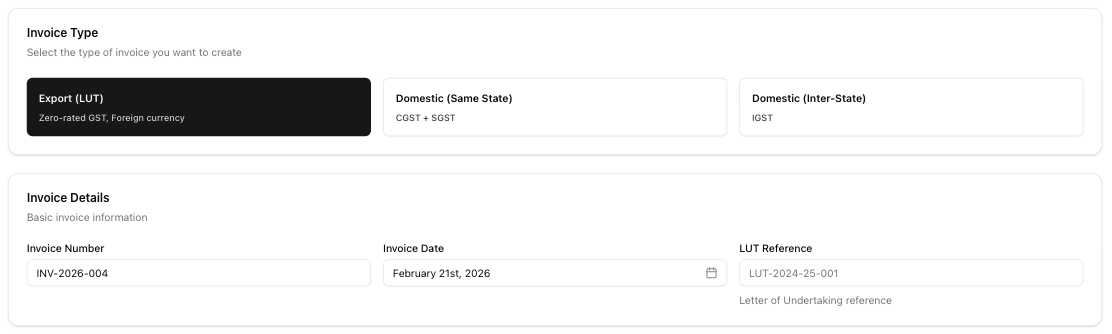
- Select Export (LUT) from the Invoice type selector.
- Enter or pick an invoice number and date. The number auto-generates as
INV-{year}-{seq}. - Optionally enter a LUT reference. This auto-populates from your settings if you configured it in Settings > Export Compliance.
- Select an existing client or enter new client details — Name, Address, Country (defaults to US), and Email.
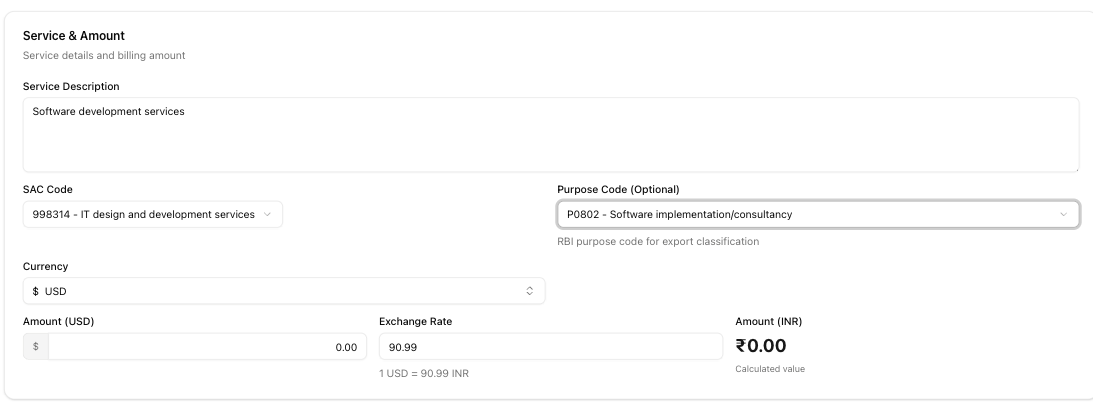
- Enter a Service description (minimum 10 characters) and select a SAC code (defaults to 998314).
- Choose a Currency (defaults to USD) and enter the Amount. The exchange rate auto-fills from the daily rate. Override it if your contract specifies a different rate.
- Optionally add a Purpose code and AD code under Additional Information.
- Add Notes if needed, then click Create Invoice.
Key fields explained
-
Invoice type — three options: Export (LUT), Domestic (Same State), and Domestic (Inter-State). Switching the type changes which fields appear on the form.
-
Currency — 50+ currencies supported including USD, EUR, GBP, AED, SGD, and AUD. Defaults to USD for export invoices.
-
Exchange rate — auto-fetched daily, displayed as "1 {currency} = {rate} INR". You can override the rate for a specific invoice.
-
SAC code — 5 IT/ITES service codes available:
- 998313 — IT consulting and support
- 998314 — IT design and development
- 998315 — hosting and infrastructure
- 998316 — network management
- 998319 — other IT services
Defaults to 998314 (IT design and development).
-
LUT reference — your Letter of Undertaking number. Auto-populated from Settings > Export Compliance if configured.
-
AD code — your bank's Authorized Dealer code, used for FEMA reporting.
-
Purpose code — RBI classification for the transaction. 6 codes available: P0801 (hardware consultancy), P0802 (software implementation), P0803 (data processing), P0804 (repair and maintenance), P0805 (news agency services), and P0806 (other information services). P0802 is the most common for IT exports.
GST treatment
Export invoices under LUT are zero-rated — no CGST, SGST, or IGST applies. This differs from domestic invoices, which charge 5%–18% GST depending on the service.
The alternative is to export with IGST payment and then claim a refund. This app defaults to zero-rated exports under LUT. If you need to charge IGST, select the Domestic (Inter-State) invoice type instead.
Note: Your LUT must be valid and filed on the GST portal. The system warns you if your LUT has expired.
After you create an export invoice
Creating an export invoice starts several compliance deadlines:
- SOFTEX filing — you have 30 days from the invoice date to file. See SOFTEX tracking.
- Payment realization — you have 15 months to receive payment from the buyer. See Realization tracking.
- e-FIRC — obtain this from your bank when payment arrives. See e-FIRC management.
- EDPMS — RBI's monitoring system, updated by your AD bank. See EDPMS monitoring.
- eBRC — After payment is realized, self-certify on the DGFT portal with your GSTIN, invoice number, and invoice date. See eBRC compliance.
eBRC and GSTIN requirement
Since January 13, 2026, DGFT requires your GSTIN, GST Invoice Number, and GST Invoice Date in every eBRC (Public Notice No. 42/2025-26). The app stores these fields in the BRC form and auto-populates the invoice number and date so you only need to enter your GSTIN.
Related articles
- LUT management — track your Letter of Undertaking and renewal reminders
- Foreign currency handling — multi-currency support and exchange rate details
- FEMA overview — understand export compliance requirements
- SOFTEX tracking — monitor SOFTEX filing deadlines
- Realization tracking — track payment realization timelines
- eBRC compliance — Record GSTIN and invoice details for Bank Realization Certificates