Salary structure
Configure an employee's salary components, statutory deductions, and net pay using a step-by-step wizard
Salary structure
Configure an employee's salary components, statutory deductions, and net pay using a step-by-step wizard.
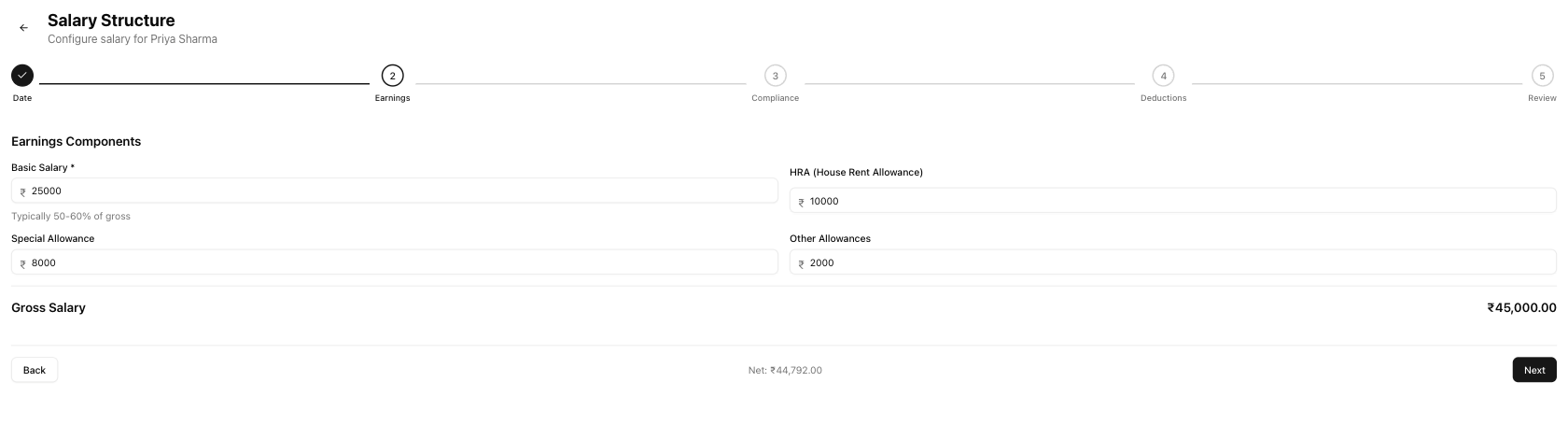
Table of contents
- Navigating to the salary page
- Step 1: Effective date
- Step 2: Earnings
- Step 3: Statutory compliance
- Step 4: Additional deductions
- Step 5: Review
- Running net pay indicator
- Salary versioning
- Related articles
Navigating to the salary page
From the employee detail page:
- Click Set Salary if no salary has been configured yet.
- Click Edit Salary to modify an existing salary structure.
The URL follows the pattern /payroll/employees/{id}/salary.
Step 1: Effective date
Pick the date the new salary structure applies from.
Note: The new structure applies from this date for all future payroll runs. Previous payroll runs are not affected.
Step 2: Earnings
Define the employee's pay components:
For monthly salaried employees:
| Field | Required | Description |
|---|---|---|
| Basic Salary | Yes | Core salary — typically 50–60% of gross |
| HRA | No | House Rent Allowance |
| Special Allowance | No | Flexible salary component |
| Other Allowances | No | Any additional allowances |
For hourly or daily workers:
| Field | Required | Description |
|---|---|---|
| Hourly Rate / Daily Rate | Yes | Pay rate per hour or per day |
The gross salary displays in real time at the bottom of the step as you enter values.
Step 3: Statutory compliance
This step applies to full-time employees only. Contractors, hourly workers, and daily workers see a message that statutory deductions do not apply to their employment type.
| Deduction | How it works |
|---|---|
| Provident Fund (PF) | Toggle on to enable. Employee and employer each contribute 12% of basic salary. When enabled, the calculated amounts display as "Employee: ₹X | Employer: ₹X". |
| ESI | Toggle on to enable. Applies only when gross salary is ₹21,000/month or less. Displays "(Not applicable - gross exceeds limit)" if the threshold is exceeded. |
| Professional Tax | Auto-calculated based on state rules. Shown in the auto-calculated deductions summary. |
| TDS | Auto-calculated based on the employee's tax slab. Shown as "TDS (estimated monthly)" in the summary. |
Step 4: Additional deductions
| Field | Description |
|---|---|
| Perquisite Recovery Amount | Recovery for non-cash benefits like food, accommodation, or company car |
| Recovery Description | Description of the perquisite being recovered |
| Notes | Free-text notes about additional deductions |
Step 5: Review
A summary card shows the complete salary breakdown:
Earnings:
- Basic, HRA, Special Allowance, Other Allowances → Gross Salary
Deductions:
- PF, ESI, Professional Tax, TDS, Perquisite Recovery → Total Deductions
Summary:
| Field | Description |
|---|---|
| Net Salary (in-hand) | Gross salary minus total deductions |
| Employer Contributions | PF (employer share) + ESI (employer share) |
| CTC | Cost to Company — gross salary plus employer contributions |
Click Save Salary Structure to confirm and apply the new structure.
Running net pay indicator
The wizard navigation bar shows "Net: ₹ amount" updated in real time as you fill in values across all steps. This lets you see the impact of each change on the employee's take-home pay without waiting for the review step.
Salary versioning
Each saved salary structure has an effective_from and effective_to date. When you save a new structure, the previous one's effective_to date is set to the day before the new structure starts. This creates a complete history of salary changes visible on the employee detail page.
Related articles
- Employee detail — View the employee's full profile and current salary
- Add employee — Create a new employee record
- Run payroll — Process monthly salaries using configured salary structures
- Payslips — Generate and distribute employee payslips