Trial Balance
Verify that total debits equal total credits across all accounts
Trial Balance
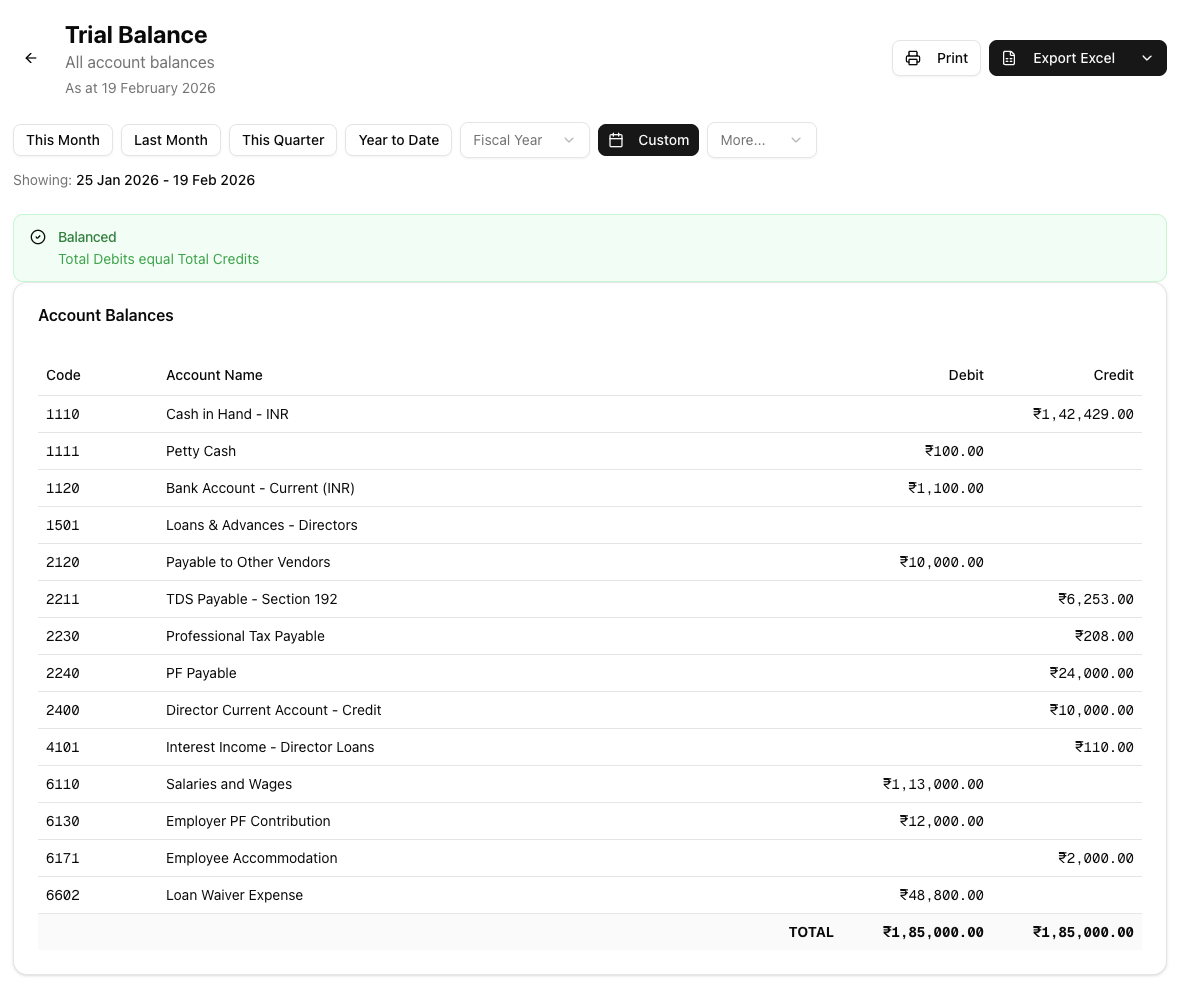
The Trial Balance lists every account in your chart of accounts alongside its debit or credit balance for the selected period. Its primary purpose is to verify that your books follow the double-entry principle — total debits must equal total credits. Run this report before generating the Balance Sheet or Profit & Loss Statement to catch posting errors, miscategorised entries, or missing transactions early.
How to Generate the Report
- Navigate to Reports from the sidebar.
- Under Financial Reports, click Trial Balance.
- Use the date picker at the top of the page to select the period you want to report on. You can choose from presets such as This Month, Last Month, This Quarter, or Year to Date, select a custom date range, or switch to a different financial year.
- The report generates automatically once a date range is selected — there is no separate "generate" button.

Understanding the Report
Balance Status
An alert at the top of the report indicates whether the Trial Balance is balanced:
- Balanced (green alert with a check-circle icon) — Total Debits equal Total Credits. The two figures match within a ₹0.01 rounding tolerance.
- Not Balanced (red alert with a warning icon) — A difference exists between Total Debits and Total Credits. The exact difference is displayed in the alert. This typically points to unposted journal entries, transactions recorded to incorrect account types, or entries that were only partially posted.
Account Balances Table
The report displays a flat list of all accounts that have activity in the selected period. Unlike the Balance Sheet and Profit & Loss Statement, the Trial Balance has no collapsible sections, no account group headers, and no sub-totals — it is a single table sorted by account code in ascending order.
Each row contains four columns:
- Code — The account code, displayed in monospace for easy scanning.
- Account Name — The full name of the account.
- Debit — The debit balance for the account, if applicable. Only one of Debit or Credit is populated per row; zero balances are left blank.
- Credit — The credit balance for the account, if applicable.
A Totals row at the bottom of the table shows the sum of all debit balances and the sum of all credit balances.
The date label at the top of the report reads "As at DD MMMM YYYY", showing only the end date of the selected period.
Exporting the Report
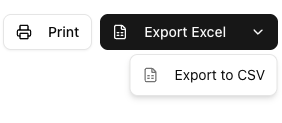
If you have the reports export permission, three export options are available from the report header:
- Excel (.xlsx) — Downloads a spreadsheet with Account Code, Account Name, Debit (₹), and Credit (₹) columns. A TOTAL row is appended at the bottom. The filename uses the end date only (e.g.
Trial_Balance_31-Mar-2025.xlsx). - CSV — Downloads a plain-text comma-separated file with the same column structure, useful for importing into other tools.
- Print — Opens your browser's print dialog so you can print the report or save it as a PDF using your browser's built-in "Save as PDF" option.
If you do not see the export buttons, ask your team admin to grant you the reports.export permission.
Tips and Best Practices
- Run before generating other financial statements. Use the Trial Balance to confirm that all account balances are correct before producing the Balance Sheet or Profit & Loss Statement.
- Check the balanced status first. If the report shows "Not Balanced", investigate before relying on any figures. Start by reviewing recently posted journal entries for errors.
- Only posted transactions are included. If figures look lower than expected, check for draft or unposted journal entries that may not yet be reflected in the report.
- Use the financial year selector. When comparing year-over-year balances, switch between financial years using the date picker rather than manually entering dates.
- Investigate "Not Balanced" promptly. Common causes include partially posted journal entries, transactions with mismatched debit and credit amounts, or entries recorded against the wrong account type.
Related Articles
- Balance Sheet — View assets, liabilities, and equity at a point in time. Run the Trial Balance first to verify that accounts are correct.
- Profit & Loss Statement — Review income and expenses for the period. The Trial Balance helps confirm that revenue and expense accounts are properly balanced.
- Date Ranges — Learn more about the date picker presets and financial year options available across all reports.
- AR Aging Reports — Track overdue customer invoices by age bucket to prioritise collections.