Profit & Loss Statement
Track income, expenses, and net profitability for any period
Profit & Loss Statement
The Profit & Loss (P&L) Statement shows your company's income and expenses over a selected period, arriving at a net profit or loss figure. Use this report to track profitability, prepare for tax filings, identify cost centres that need attention, and make informed decisions about pricing or investment.
How to Generate the Report
- Navigate to Reports from the sidebar.
- Under Financial Reports, click P&L (or Profit & Loss).
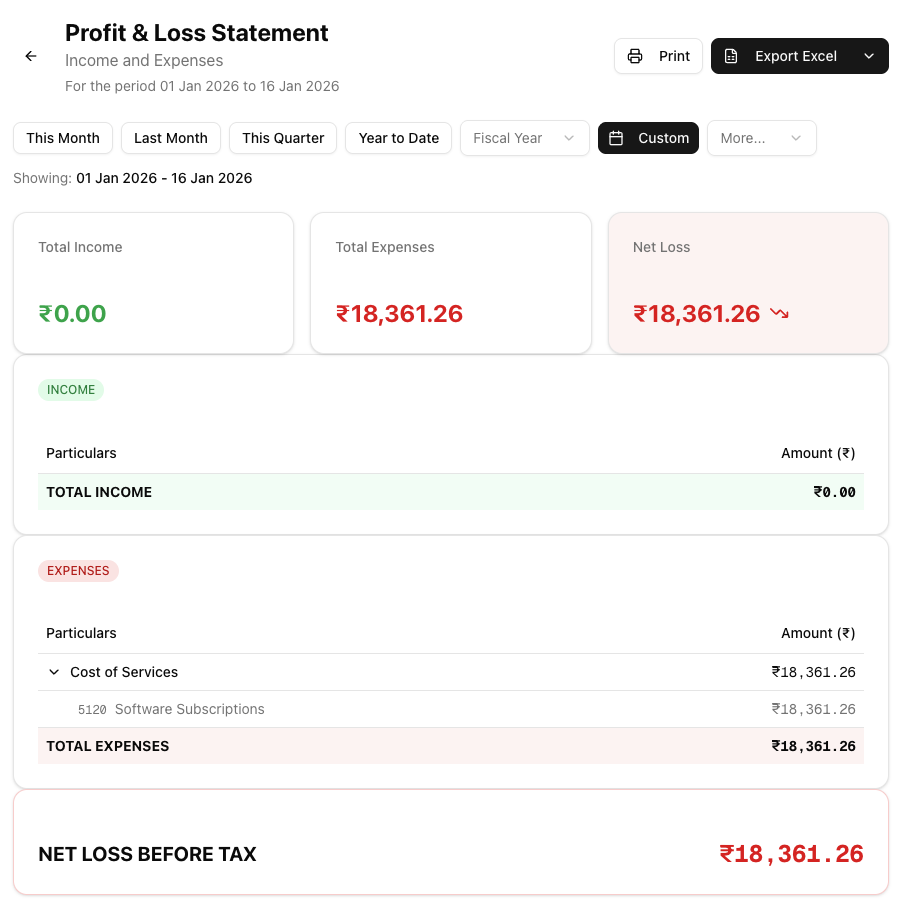
- Use the date picker at the top of the page to select the period you want to report on. You can choose from presets such as This Month, Last Month, This Quarter, or Year to Date, select a custom date range, or switch to a different financial year.
- The report generates automatically once a date range is selected — there is no separate "generate" button.

Understanding the Report
The P&L Statement is organised into three main areas: summary cards at the top, followed by detailed Income and Expenses tables, and a final Net Profit/Loss row.
Summary Cards
Three cards appear at the top of the report:
- Total Income — Displayed in green, this is the sum of all income accounts for the selected period.
- Total Expenses — Displayed in red, this is the sum of all expense accounts for the selected period.
- Net Profit / Net Loss — The difference between total income and total expenses. The card background and text are colour-coded: green with an upward trend icon when the result is a profit, red with a downward trend icon when it is a loss.
Income Section
Income accounts are grouped into two categories based on account code ranges:
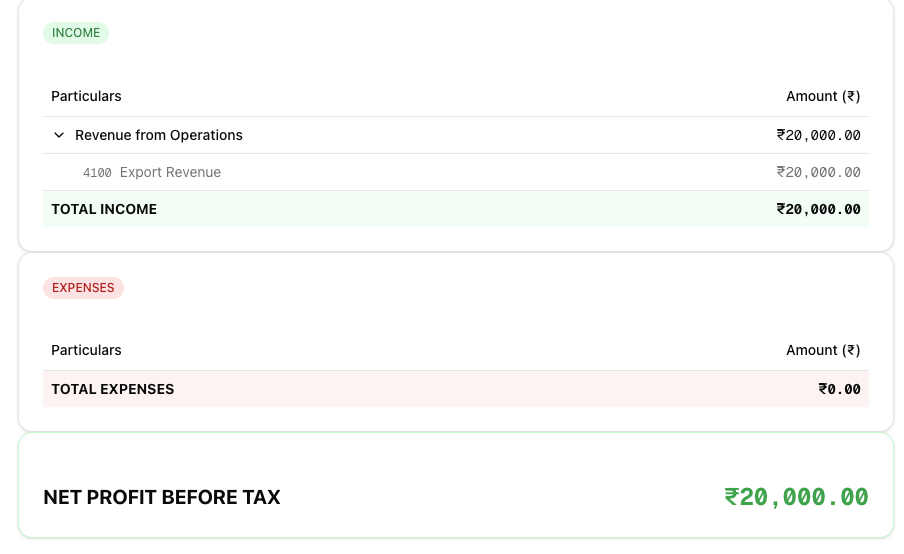
- Revenue from Operations (account codes 4000–4199) — Your primary business income such as service fees, consulting revenue, or product sales.
- Other Income (account codes 4200–4999) — Secondary income such as interest earned, rental income, or gains on asset disposal.
The total of both groups is shown as Total Income, highlighted in a green row.
Expenses Section
Expense accounts are grouped into six categories:
- Cost of Services (account codes 5000–5199) — Direct costs tied to delivering your services or products, such as subcontractor fees or materials.
- Employee Benefit Expenses (account codes 6100–6199) — Salaries, wages, provident fund contributions, and other staff-related costs.
- Finance Costs (account codes 6500–6599) — Interest on loans, bank charges, and other borrowing costs.
- Depreciation & Amortization (account codes 6900–6999) — The periodic write-down of tangible and intangible assets.
- Other Expenses (account codes 6200–6499) — General operating costs such as rent, utilities, travel, office supplies, and professional fees.
- Regulatory Expenses (account codes 6600–6699) — Licence fees, filing fees, penalties, and other compliance-related costs.
The total of all six groups is shown as Total Expenses, highlighted in a red row.
Net Profit / Loss Before Tax
A final row at the bottom of the report shows Net Profit/Loss Before Tax — the difference between Total Income and Total Expenses. This row is colour-coded green when the result is a profit and red when it is a loss.
Expanding and Collapsing Sections
Each account group (Revenue from Operations, Other Income, Cost of Services, etc.) can be expanded or collapsed by clicking its header row. When expanded, you can see every individual account in that group along with its account code and balance for the selected period.
Exporting the Report
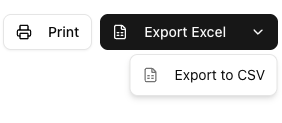
If you have the reports export permission, three export options are available from the report header:
- Excel (.xlsx) — Downloads a spreadsheet with Category, Particulars, and Amount columns. This is the primary export option.
- CSV — Downloads a plain-text comma-separated file with the same column structure, useful for importing into other tools.
- Print — Opens your browser's print dialog so you can print the report or save it as a PDF using your browser's built-in "Save as PDF" option.
Exported filenames include the selected period (e.g. PnL_Statement_01-Jan-2026_to_31-Mar-2026.xlsx).
If you do not see the export buttons, ask your team admin to grant you the reports.export permission.
Tips and Best Practices
- Review monthly. Generate the P&L at the end of each month to catch unexpected expenses early and track revenue trends before they become problems.
- Match the period to your goal. Use "This Quarter" or "Year to Date" for a broad performance overview, and "This Month" or a custom range when investigating a specific cost spike or revenue change.
- Ensure all entries are posted. The report only includes posted transactions. If figures look lower than expected, check for draft or unposted journal entries that may not yet be reflected.
- Cross-reference with the Balance Sheet. Your net profit feeds into retained earnings on the Balance Sheet. Running both reports for the same period helps verify that income and expense entries are complete.
- Use the financial year selector. When comparing year-over-year performance, switch between financial years using the date picker rather than manually entering dates.
- Export for stakeholders. Use the Excel export to share the P&L with accountants, auditors, or investors who may need the data in spreadsheet form.
Related Articles
- Balance Sheet — View assets, liabilities, and equity at a point in time. Net profit from the P&L feeds into retained earnings on the Balance Sheet.
- Trial Balance — Verify that all account balances are correct before generating financial statements.
- Date Ranges — Learn more about the date picker presets and financial year options available across all reports.
- AR Aging Reports — Track overdue customer invoices by age bucket to prioritise collections.