TDS challans
Record TDS deposit challans, allocate bills, cancel challans, bulk-create, verify on TRACES, and link deposits to quarterly returns
TDS challans
Record your TDS deposit challans, allocate them to vendor bills, and link deposits to quarterly Form 26Q returns.
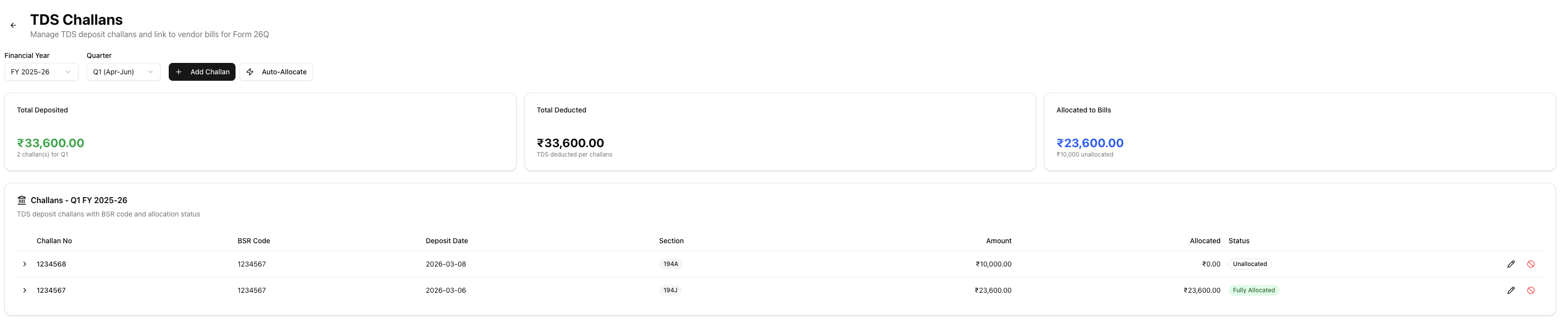
Table of contents
- Monthly deposit deadlines
- Challan types
- Challan 281 fields
- Recording a challan
- Editing a challan
- Creating a challan from a bill
- Challan list page
- Challan detail page
- Cancelling a challan
- Auto-allocate
- Bulk create challans
- Form 26Q link
- Verification
- Late deposit consequences
- Related articles
Monthly deposit deadlines
You must deposit TDS to the government by the 7th of the month following deduction. For TDS deducted in March, the deadline extends to 30th April.
| Month of deduction | Deposit deadline |
|---|---|
| April – February | 7th of the next month |
| March | 30th April |
Late deposits attract interest under Section 201(1A) at 1.5% per month from the date of deduction to the date of deposit. See late deposit consequences for details.
Challan types
| Challan | Used for |
|---|---|
| Challan 281 | TDS and TCS deposits — this is the challan you record here |
| Challan 280 | Advance tax and self-assessment tax (not TDS) |
Challan 281 fields
Challan 281 (ITNS 281) is the prescribed form for depositing TDS and TCS with the government. You file it online through the income tax e-filing portal.
Key fields on Challan 281:
| Field | Description |
|---|---|
| TAN | Your 10-digit Tax Deduction Account Number |
| Assessment year | The assessment year for the deduction (e.g., 2026-27 for FY 2025-26) |
| Major head code | 0020 for company deductees, 0021 for non-company deductees |
| Section code | The TDS section (e.g., 194C, 194J, 194I) |
| Amount | TDS amount, surcharge, cess, interest (if late), and fee (if applicable) |
After successful payment, the bank issues a receipt with three identifiers that form the Challan Identification Number (CIN):
- BSR code — a 7-digit code identifying the bank branch
- Challan serial number — a 5-digit serial assigned by the branch
- Deposit date — the date of payment
Record these three values accurately — they must match when you file your quarterly TDS return.
Recording a challan
- Go to TDS > Challans.
- Click Add Challan.
- Fill in the challan details:
| Field | Description |
|---|---|
| Challan Number | The serial number from your deposit receipt |
| BSR Code | 7-digit code of the bank branch where you deposited |
| Deposit Date | Date the amount was deposited |
| Challan Date | Date on the challan receipt (optional) |
| Amount Deposited | Total amount deposited |
| Amount Deducted | TDS amount deducted (optional) |
| TDS Section | The applicable section — 194C, 194J, 194I, etc. |
| Payment Mode | Online or bank |
| Interest | Interest paid for late deposit (optional) |
| Late Fee | Penalty amount, if any (optional) |
| Notes | Free-text notes for your reference (optional) |
- Click Save to record the challan.
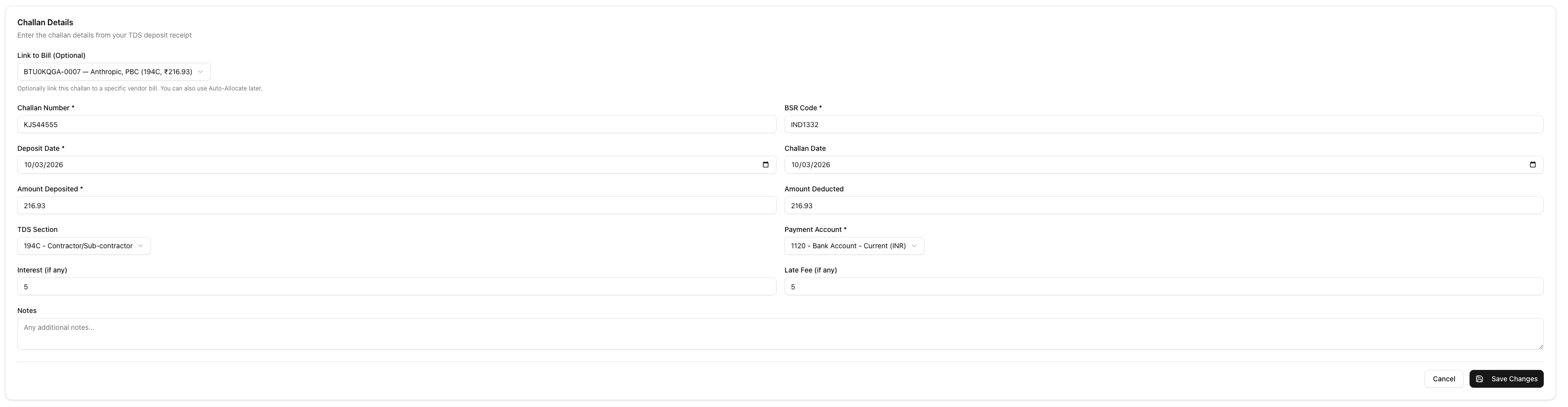
The system calculates the assessment year, quarter, period, and due date automatically from the deposit date.
Editing a challan
- Go to TDS > Challans and click Edit on the challan row.
- Update challan fields (amount, BSR code, deposit date, etc.).
- Use the Bill Allocations card to manage which bills are linked to this challan:
| Action | How |
|---|---|
| Add allocation | Click Allocate Bills (disabled when the challan has no remaining unallocated amount) |
| Remove allocation | Click the remove button on an allocation row and confirm |
| Auto-allocate | Click Re-run Auto-Allocate to match unallocated bills by quarter and section |
- Click Save to apply your changes.
Note: You cannot reduce the challan amount below the total already allocated to bills. Remove allocations first if you need to lower the amount.
Creating a challan from a bill
You can create a challan pre-filled with a specific bill's details:
- Go to TDS > TDS Payable.
- Find the unallocated bill in the table.
- Click the + Challan button on that bill's row.
The challan form opens with the bill pre-selected. The TDS section, amount, and quarter are filled in automatically from the bill. Enter the challan number, BSR code, and deposit date, then click Save.
This is useful when you deposit TDS for a single bill rather than a batch.
Challan list page
The list page shows all recorded challans with filters for Financial Year and Quarter.
Summary cards at the top show totals for active challans only (cancelled challans are excluded):
| Card | What it shows |
|---|---|
| Total Deposited | Sum of all active challan deposits |
| Total Deducted | Sum of TDS deducted |
| Allocated to Bills | Amount linked to vendor bills |
Table columns:
| Column | Description |
|---|---|
| Challan No | Challan number — click to open the detail page |
| BSR Code | Bank branch code |
| Deposit Date | When the deposit was made |
| Section | TDS section badge |
| Amount | Total deposited |
| Allocated | Amount allocated to bills |
| Status | Fully Allocated (green), Partial (amber), Unallocated (outline), or Cancelled (red) |
| Actions | Edit or cancel the challan (hidden for cancelled challans) |
Click any row to expand it and see the linked bills inline.
Challan detail page
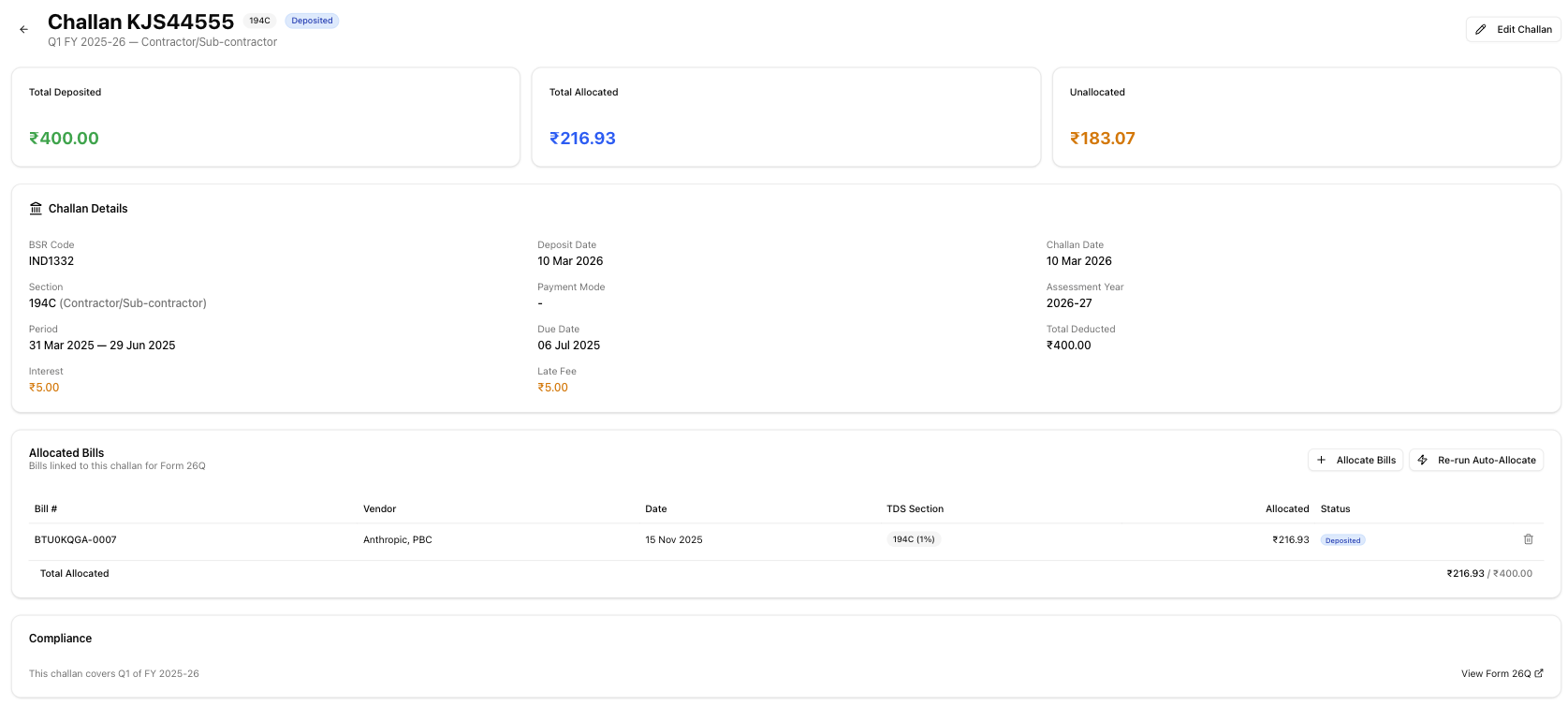
Click a challan number to open its detail page.
Summary cards show:
| Card | What it shows |
|---|---|
| Total Deposited | Amount deposited in this challan |
| Total Allocated | Amount allocated to bills |
| Unallocated | Remaining amount not yet linked to bills — highlighted in amber when pending |
Details grid displays the challan information:
- BSR Code, Deposit Date, Challan Date
- Section with full section name
- Payment Mode (online or bank)
- Assessment Year and Period (start and end dates)
- Due Date for the deposit
- Interest and Late Fee — shown in amber if greater than zero
- Notes, if any
Allocated bills table lists all vendor bills linked to this challan:
| Column | Description |
|---|---|
| Bill # | Bill number — click to open the bill |
| Bill Date | Date of the bill |
| Vendor | Vendor name |
| TDS Section | Section and rate |
| TDS Rate | Rate applied |
| Allocated Amount | TDS amount allocated from this challan |
A summary row shows total allocated against the challan total.
Cancelling a challan
If you recorded a challan incorrectly or need to reverse it, cancel it instead of deleting it. Under Indian tax law, deposited TDS challans cannot be erased — the app preserves the full audit trail.
To cancel a challan:
- Go to TDS > Challans.
- Click the cancel button (ban icon) on the challan row.
- Enter a reason for the cancellation and confirm.
When you cancel a challan:
- The challan's status changes to Cancelled (red badge) and it remains visible in the list.
- The journal entry created for the deposit is voided, not deleted. You can still see it in your transactions list with a "voided" status.
- All bill allocations are removed. Each affected bill's activity timeline records both an "unlinked" and a "cancelled" event.
- Summary cards and the TDS compliance dashboard exclude cancelled challans from totals.
- The Edit and Cancel buttons are hidden for already-cancelled challans.
Note: Cancellation cannot be undone. If you cancelled a challan by mistake, record a new challan with the correct details.
Auto-allocate
Auto-allocate matches unallocated bills to challans based on quarter and section.
- On the challan list page, click Auto-Allocate to run allocation across all challans for the selected quarter.
- On a challan detail page, click Re-run Auto-Allocate to re-allocate bills for that specific challan's quarter.
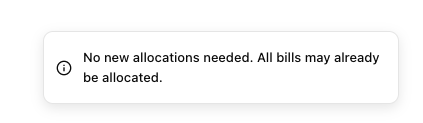
After allocation completes, a notification shows how many bills were allocated and how many could not be matched.
Bulk create challans
When you have many unallocated bills in a quarter, use bulk create to record multiple challans at once instead of adding them one by one.
- Go to TDS > TDS Payable.
- In the By Quarter tab, click Bulk Create on a quarter that has unallocated bills.
- Set global defaults for deposit date and payment account at the top. These apply to every row unless you override them individually.
- For each bill, enter the Challan Number and BSR Code. You can also adjust the amount, deposit date, or payment account per row.
- Leave the challan number blank to skip a bill.
- Click Create All.
The system creates a separate challan for each filled row and automatically allocates the bill to it. A progress indicator shows how many challans have been created. After completion, you are returned to the TDS payable page.
Note: The Bulk Create button is disabled when all bills in the quarter are already allocated to challans.
Form 26Q link
Each challan detail page includes a compliance card showing the quarter and financial year the challan covers. Click View Form 26Q to go directly to the Form 26Q page for that quarter, where the challan appears as part of the quarterly return data.
Verification
After recording a challan, verify the deposit against government records:
- Match with your bank statement to confirm the deposit amount and date
- OLTAS (Online Tax Accounting System) — visit the TIN-NSDL portal and use the CIN-based view. Enter your BSR code, deposit date, and serial number to confirm the deposit.
- TRACES — log in with your TAN credentials and navigate to View Challan Status. TRACES shows whether the challan has been matched against your filed returns.
- Check allocation status to ensure all deducted TDS is linked to a deposit before filing the quarterly return
Verify deposits before filing your quarterly return. Unmatched challans in the return trigger demand notices from CPC-TDS.
Late deposit consequences
Late TDS deposits attract two types of charges:
| Consequence | Rate | Period |
|---|---|---|
| Interest on late deposit (Section 201(1A)) | 1.5% per month (or part of month) | From date of deduction to date of deposit |
| Interest on late/non-deduction (Section 201(1A)) | 1% per month (or part of month) | From date when TDS should have been deducted to actual deduction date |
Key points:
- Interest is simple interest, not compound.
- Even one day of delay counts as a full month.
- Interest is calculated on the TDS amount, not on the gross payment.
- Late deposit interest is not deductible as a business expense.
For severe or repeated non-compliance, prosecution under Section 276B can result in imprisonment of 3 months to 7 years for TDS amounts exceeding ₹25 lakh.
Related articles
- TDS payable summary — Review outstanding TDS amounts and deposit status
- Bulk create challans — Record multiple challans at once from unallocated bills
- TDS overview — What TDS is and your compliance responsibilities
- TDS calculation — How the system calculates TDS on payments
- TDS returns — Quarterly return filing using recorded challan details
- Form 24Q — Salary TDS return that references your challans
- Form 26Q — Non-salary TDS return that references your challans
- Bill payments — Record payments against vendor bills and deduct TDS