TDS payable summary
Review outstanding TDS amounts across all vendor bills, track deposits by quarter, section, or vendor, and create challans
TDS payable summary
Review outstanding TDS amounts across your vendor bills, track what has been deposited, and create challans for pending amounts.
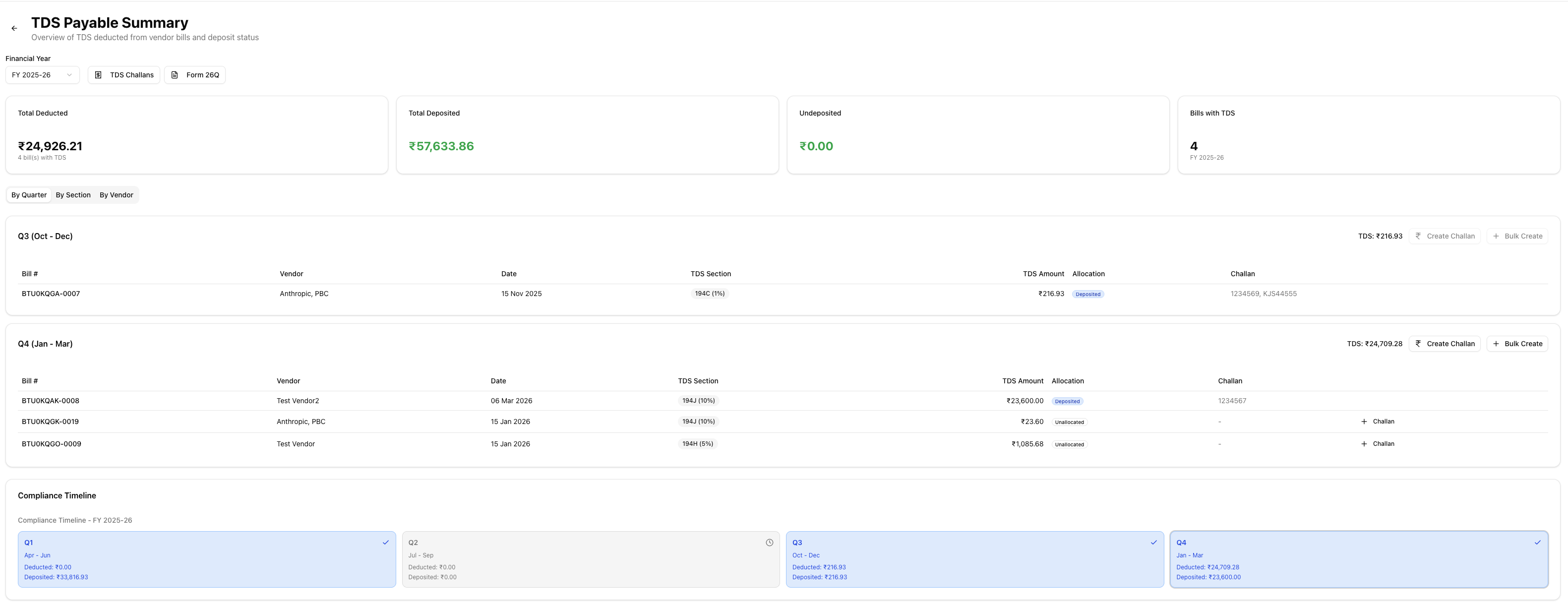
Table of contents
- Summary cards
- Financial year selector
- Tab views
- Bill table
- Creating challans from bills
- Compliance timeline
- Navigation
- Related articles
Summary cards
Four cards at the top show your TDS position for the selected financial year:
| Card | What it shows |
|---|---|
| Total Deducted | Total TDS deducted across all bills, with the number of bills |
| Total Deposited | Total TDS deposited to the government (excludes cancelled challans) |
| Undeposited | Outstanding TDS not yet deposited — highlighted in amber when amounts are pending |
| Bills with TDS | Count of bills that have TDS in the selected year |
Financial year selector
Use the dropdown at the top to switch between the current financial year and the two previous years. All summary cards, tabs, and the compliance timeline update when you change the year.
Tab views
Three tabs let you view TDS bills grouped differently:
By quarter
Groups bills into fiscal quarters (Q1: April–June, Q2: July–September, Q3: October–December, Q4: January–March). Each quarter shows:
- The quarter name and month range
- Total TDS amount for that quarter
- A Create Challan button to record a deposit for that quarter (disabled when all bills are already allocated)
- A Bulk Create button to record multiple challans at once for unallocated bills in the quarter (see bulk create challans)
- A bill table with all TDS bills in the quarter
Only quarters that have bills appear.
By section
Groups bills by TDS section (for example, 194C, 194J, 194I). Each group shows the section name, total TDS amount, and a bill table.
By vendor
Groups bills by vendor name. Each group shows the vendor, total TDS amount, and a bill table.
Bill table

Each tab displays bills in a table with these columns:
| Column | Description |
|---|---|
| Bill # | Invoice number — click to open the bill detail page |
| Vendor | Vendor name |
| Date | Bill date |
| TDS Section | Section and rate badge (for example, "194C (2%)") |
| TDS Amount | TDS deducted on this bill |
| Allocation | Status badge — Deposited (green), Partial (amber), or Unallocated (outline) |
| Challan | Challan number(s) the TDS is allocated to |
| Actions | + Challan button for unallocated bills (hidden when already deposited) |
Creating challans from bills
You can create a challan directly from an individual bill or in bulk:
-
Single bill — Click the + Challan button on any unallocated bill row. The challan form opens pre-filled with that bill's TDS section, amount, and quarter. Enter the challan number, BSR code, and deposit date, then save. See creating a challan from a bill.
-
Bulk — Click the Bulk Create button on a quarter header to open the bulk creation page. This lets you record challans for all unallocated bills in the quarter at once. See bulk create challans.
Compliance timeline

A visual timeline below the tabs shows quarterly deposit and filing status at a glance. Each quarter displays:
- Total TDS deducted and deposited amounts
- A colour-coded status: green for filed or accepted, blue for deposited, red for overdue, grey for pending
- The current quarter is highlighted with a ring
Navigation
From this page you can:
- Click TDS Challans to view and manage all deposit challans
- Click Form 26Q to generate the quarterly non-salary TDS return
- Click Create Challan on any quarter to record a new deposit for that period
- Click Bulk Create on any quarter to record challans for all unallocated bills at once
- Click + Challan on a bill row to create a challan pre-filled from that bill
- Click any bill number to open the bill detail page
- Use the back button to return to the TDS Compliance dashboard
Related articles
- TDS challans — Record TDS deposits and allocate bills
- Bulk create challans — Record multiple challans at once from unallocated bills
- Form 26Q — Generate the quarterly non-salary TDS return
- TDS overview — How TDS works in the app from deduction to filing
- Bill payments — Record payments against vendor bills and deduct TDS