AP Aging Reports
Track overdue vendor bills by age bucket to prioritise payments
AP Aging Reports
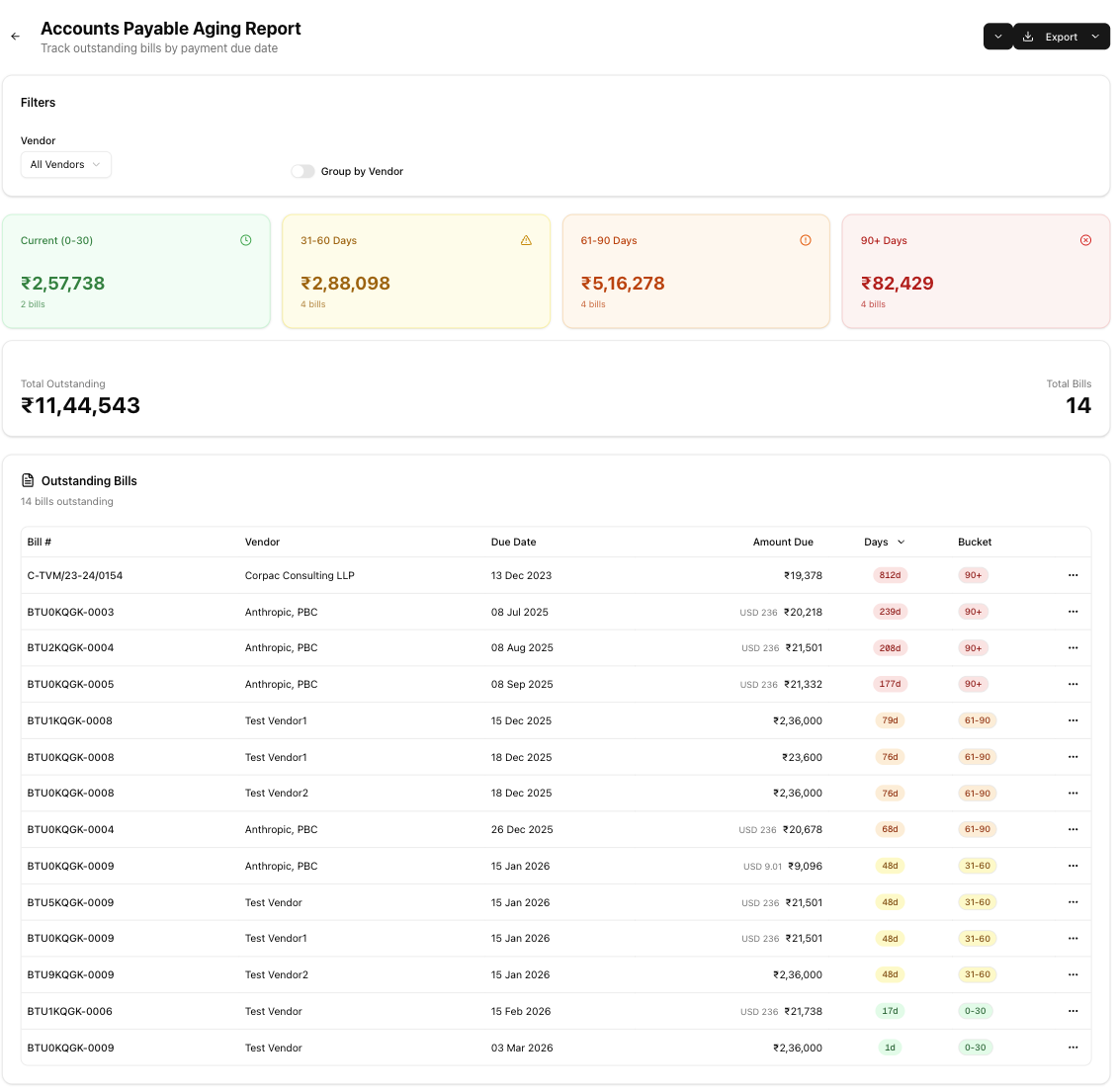
The Accounts Payable Aging report breaks down your unpaid bills into time-based buckets so you can see at a glance how long payments have been outstanding. Use it to prioritise vendor payments, take advantage of early-payment discounts, and monitor the overall health of your payables.
How to Generate the Report
- Navigate to Reports from the sidebar.
- Under Financial Reports, click AP Aging.
- The report generates automatically using today as the "as of" date — there is no separate generate button.
Understanding the Report
Summary Cards
Four color-coded cards appear at the top of the page, one for each aging bucket:
| Card | Bucket | Colour |
|---|---|---|
| Current | 0–30 days | Green |
| 31–60 days | 31–60 days | Yellow |
| 61–90 days | 61–90 days | Orange |
| 90+ days | Over 90 days | Red |
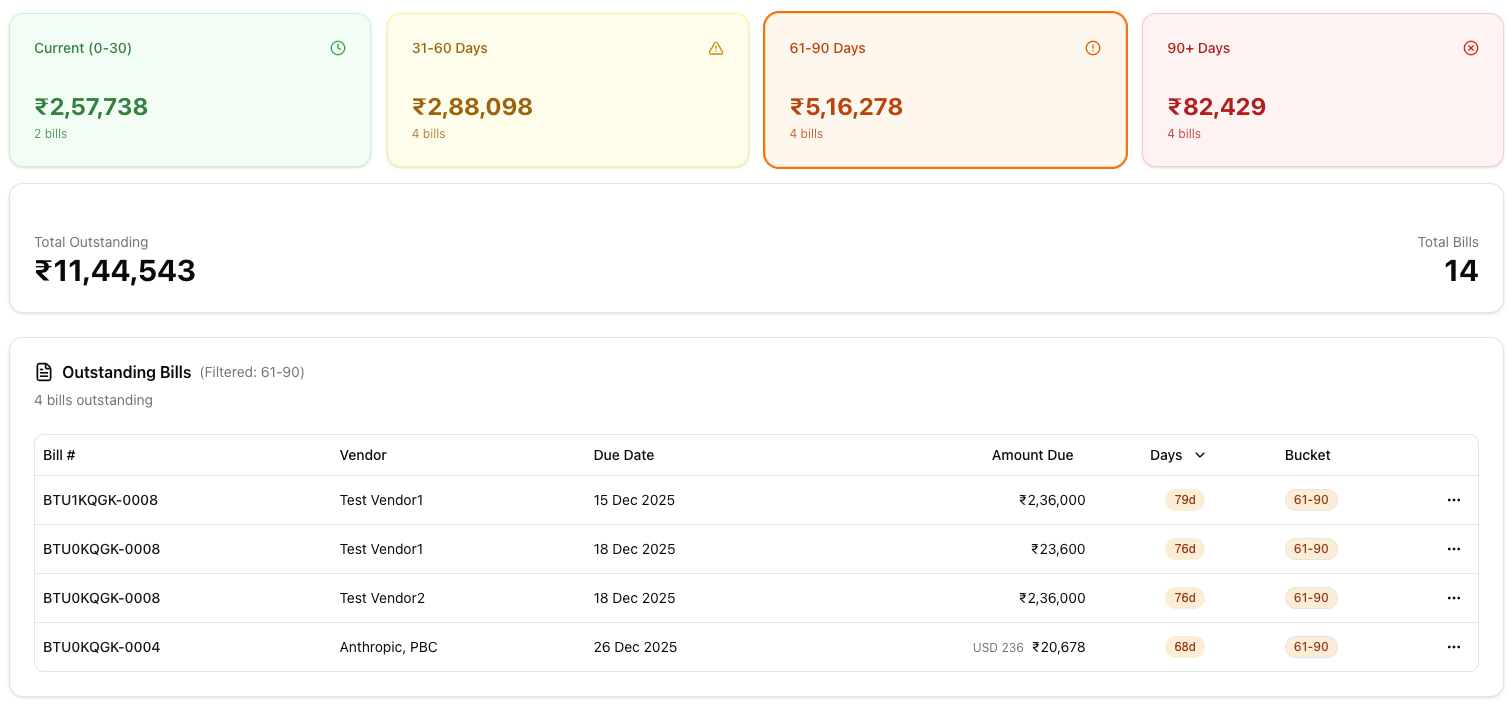
Each card displays the number of bills and the total amount in INR for that bucket. Click any card to filter the table below to only the bills in that bucket.
Aging Table
Below the summary cards, a detailed table lists every outstanding bill. The table columns are:
- Bill Number — Links directly to the bill detail page.
- Vendor — The vendor or supplier name.
- Bill Date — The date the bill was received.
- Due Date — The date by which payment is due.
- Amount Due (INR) — The outstanding amount in Indian Rupees.
- Days Overdue — Number of days past the due date.
- Bucket — The aging bucket the bill falls into (Current, 31–60, 61–90, or 90+).
All columns are sortable — click a column header to sort ascending, click again for descending.

Filtering and Grouping
Use the controls above the table to narrow down the report:
- Vendor — Select a specific vendor from the dropdown to view only their outstanding bills.
- Expense Category — Filter bills by their assigned expense category.
- Bucket filter — Click any summary card to show only bills in that aging bucket. Click the card again (or select a different card) to change the filter.
- Search — Search by vendor name or bill number to quickly locate specific payables.
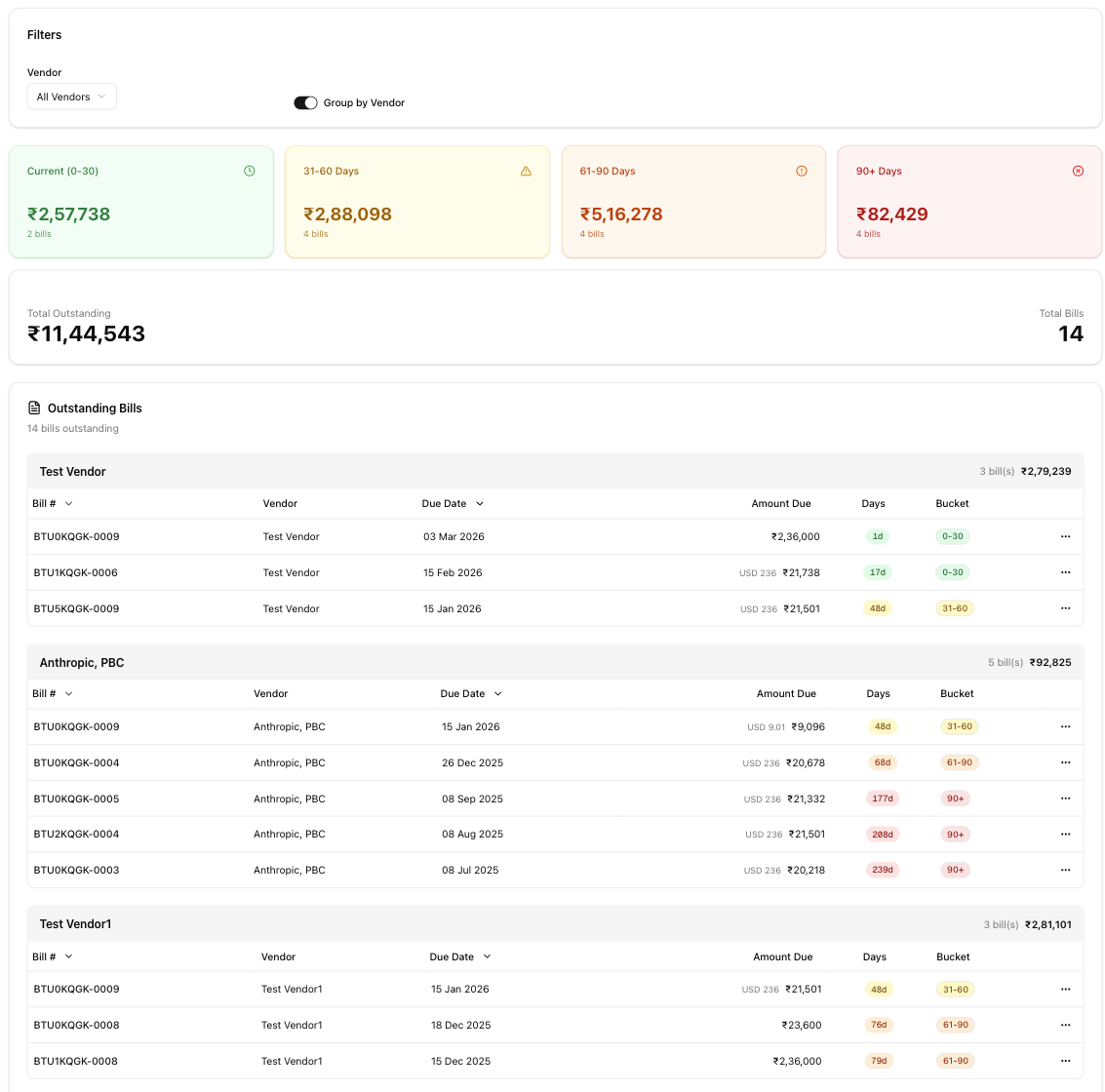
- Group by Vendor — Toggle this on to group rows by vendor, with subtotals shown for each vendor.
Exporting the Report
If you have the reports.export permission, a CSV export button is available in the report header. Clicking it downloads a file named ap-aging-report-YYYY-MM-DD.csv containing the currently displayed data.
If you do not see the export button, ask your team admin to grant you the reports.export permission.
Tips and Best Practices
- Review the report weekly. Regular reviews help you manage your Days Payable Outstanding (DPO) and maintain healthy vendor relationships.
- Prioritise the red bucket. Bills over 90 days past due can damage vendor relationships and may incur late-payment penalties — address these first.
- Use the Group by Vendor view. This makes it easy to see your total exposure to each vendor and identify where outstanding balances are concentrated.
- Watch for early-payment discount deadlines. Many vendors offer discounts (e.g., 2/10 net 30) for prompt payment — use the aging table to spot bills approaching their discount windows.
- Export before month-end close. Download a CSV snapshot of your aging data at the end of each month for your records and audit trail.
Related Articles
- AR Aging Reports — Track overdue customer invoices to prioritise collections.
- Record a Bill — How to create and manage bills.
- Balance Sheet — Review your overall financial position, including total payables.
- Profit & Loss Statement — Understand revenue and expenses for the period.
- Ledger Reports — Drill into individual account transactions.
- Date Ranges — Learn how date presets and financial year selectors work across reports.